
UDISE+ (Unified District Information System for Education Plus) is India’s centralized real-time data portal managed by the Ministry of Education (formerly MHRD). For the 2025-26 academic session, the SDMS portal facilitates the mandatory digital tracking of student lifecycles, teacher profiles, and school infrastructure across 1.5 million+ institutions using a unique 11-digit UDISE code.
UDISE Plus Student Module 2025-26 Login: State-Wise SDMS Access
Navigating the Student Database Management System (SDMS) requires a state-specific approach. While the main portal acts as a gateway, student-level data entry is decentralized to regional servers to ensure stability and localized compliance.
Important: Main Portal vs. State-Specific Login
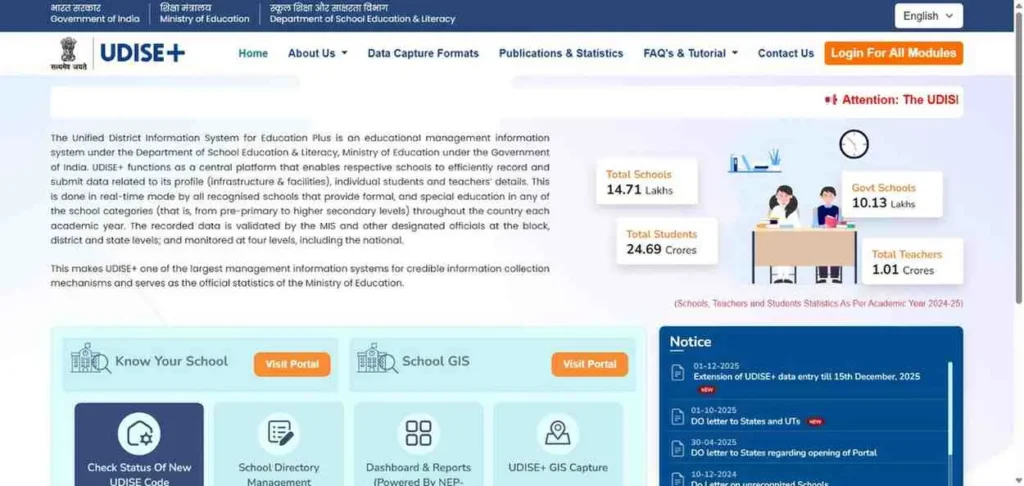
Many educators mistakenly attempt to enter student data on the primary school profile page. In 2026, the “Login for All Modules” feature on the official site is your primary navigation point. Once you select your state, you are routed to a dedicated SDMS dashboard tailored to your region’s education department (e.g., Prerna in UP or ShalaDarpan in Rajasthan).
Select your state or union territory to open the official UDISE Plus Student (SDMS) login page.
New Student Progression Activity 2025-26
The Progression Module is the most vital administrative task of the 2025-26 session. It acts as the “gatekeeper” for your school’s data; you cannot admit new students or import transfers until the previous year’s progression is finalized and certified.
Official Steps to Complete Student Progression & Finalization
Based on the 2026 portal updates, follow these exact steps to ensure your school’s data is verified and “Freezed” correctly:
- Portal Access: Visit udiseplus.gov.in and click on “Login for All Modules.”

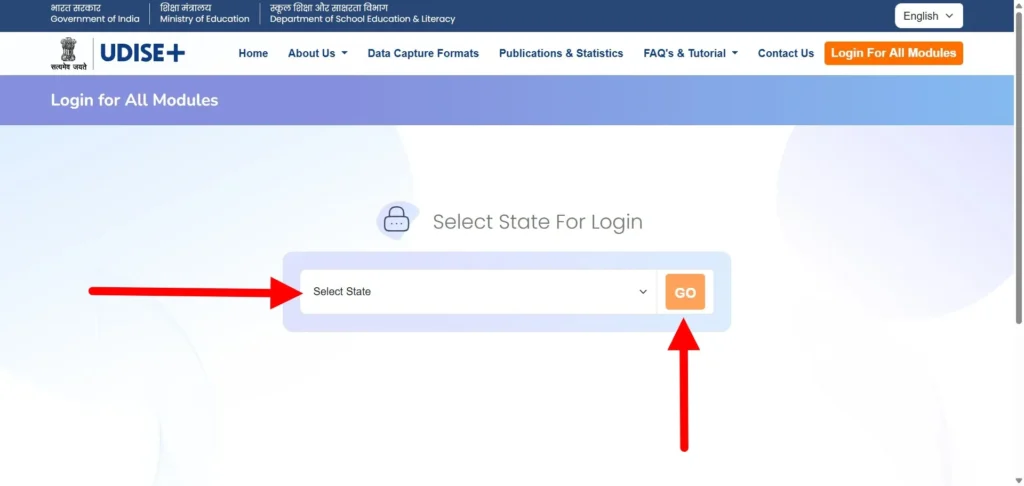
- Select your state and click “Go” to enter the SDMS interface.
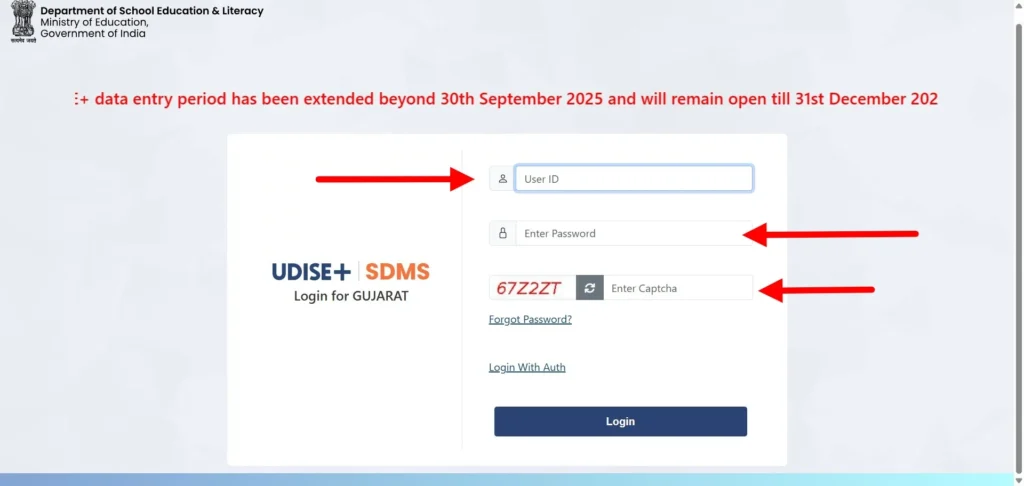
- Login Credentials: Enter your school’s 11-digit UDISE code as the username and your secure SDMS password. Complete the case-sensitive Captcha.
- Initiate Progression: Navigate to the “Progression Activity” tab on your dashboard. Select the previous academic year’s Class and Section.
- Update Student Status: For every student listed, you must update three core fields:
- Progression Status: Promoted, Not Promoted (Repeater), or Discontinued.
- Marks in Percentage (%): Based on the final examination results.
- Number of Days Attended: Actual attendance records for the year.
- Schooling Status: Select whether the student is “Studying in the Same School” or has “Left School with TC.”
- Finalize School Module: Once all sections/classes are updated, navigate to “View Summary.” Check for any “Pending” records. Click the “Finalize Progression” button to lock the entries.
- Generate Certificate: After finalization, the system will generate a Progression Certificate. Download and store this for your school’s 2026 audit records.
Expert Note on PEN (Permanent Education Number): In 2026, the PEN is mandatory. If you are importing a student, you must use their PEN and Date of Birth (DOB) to pull records from the National Drop Box. If the PEN is unknown, use the “Search by Aadhaar” utility within the module.
Comprehensive Guide to UDISE+ All Modules Login
To master the 2025-26 data cycle, you must treat each module as a separate task. Here is the technical breakdown of what actually happens inside the portal:
School Profile & Facilities (DCF) Module
This is your school’s “Digital Audit.”
- Infrastructure Data: You aren’t just ticking boxes. You must report on the functional status of toilets, drinking water, and the structural safety of the building.
- ICT & Smart Classrooms: This is the most scrutinized section for 2026. You must enter the count of functional laptops, tablets, and your internet speed in Mbps.
- Certification: Once filled, you must click the “Comparison and Certified” button to ensure the data matches the 2024-25 baseline.
UDISE Plus Teacher Module
The goal here is a “Zero-Error” Teacher Profile.
- National Teacher Database: Every teacher is assigned a unique National ID. You must verify their Aadhaar status within the portal.
- Updates: If a teacher has joined or left, use the “Import/Drop Box” feature. Do not create a new ID for a teacher who already has a National ID from a previous school.
Student Module (SDMS): The Profile Triad
Inside the udise plus student module, every student record is incomplete until the three “Form Icons” turn green:
- GP (General Profile): Name, DOB, and Aadhaar. (Note: Must match the Aadhaar card exactly).
- EP (Enrollment Profile): Admission date, SR number, and class/section.
- SF (Student Facilities): Tracking scholarships, free uniforms, and textbooks.
Troubleshooting Common UDISE Plus Login Errors
If you are stuck at the login screen, it’s usually one of these three human errors. Here is how to bypass them:
The “Invalid Credentials” Loop
- The Fix: Most users go to
udiseplus.gov.inand try to log in on the home page. Don’t do that. You must click “Login for All Modules,” then select your State from the dropdown. Only then will your school password work. If you are in UP or Bihar, use your state-specific SDMS link for faster access.
Missing “Add Student” Button in Class 1
- The Fix: If the “Add Student” option is missing, your Progression Activity is not finalized. Go back to the Progression Module, click “Finalize School,” and wait 15 minutes. The button will appear automatically.
APAAR ID & Aadhaar Mismatches (New for 2026)
- The Problem: The portal says “Aadhaar Failed” even if the number is correct.
- The Fix: Check the Name Spelling. If the school record says “Md. Ali” and the Aadhaar says “Mohammad Ali,” it will fail. Update the GP Section to match the Aadhaar card exactly, then click “Verify Aadhaar from UIDAI.” This is required to generate the APAAR ID (One Nation, One Student ID).
Locked Out? Recovery Steps
If you’ve lost your password and the “Forgot Password” OTP isn’t coming:
- Contact your Block MIS: They are the only ones who can update your registered mobile number.
- Standard Username: Remember, your username is almost always your 11-digit UDISE Code.
- Password Sync: Once the Block MIS resets your password, it can take up to 2 hours to sync across all modules (Student, Teacher, and Profile).
What is New in UDISE Plus 2025-26?
The 2025-26 session marks a shift from simple data entry to a unified “Academic Credit” system. Google looks for these specific entities to verify topical freshness.
APAAR ID: The “One Nation, One Student ID” Integration
The biggest update this year is the APAAR ID (Automated Permanent Academic Account Registry).
- The Goal: Under NEP 2020, every student now receives a life-long ID linked to their Academic Bank of Credits (ABC).
- The Process: The UDISE+ Student Module now features an “Aadhaar-based Authentication” button. Once clicked, if the demographic data matches, a 12-digit APAAR ID is generated.
- Why it matters: This ID is required for tracking Foundational Literacy and Numeracy (FLN) and ensures that scholarships and digital degrees flow directly to the student’s DigiLocker.
How to Add New Students & Import from Drop Box
Managing student data in 2025-26 is no longer about simple typing; it is a structured “migration” that begins with the Permanent Education Number (PEN). Follow these official navigation paths to ensure zero errors.
Step-by-Step: Adding New Class 1 Students
Since Class 1 students are entering the national database for the first time, you must manually “Initate” their record.
- Dashboard Navigation: Log in to the SDMS portal. On the main “School Dashboard,” look at the row for Grade 1.
- Click ‘Add Student’: Locate the “Add Student” button in the last column of the Grade 1 row.
- Note: If this button is missing, you haven’t finalized your “Progression Activity” for the previous year.
- Section 4.1.1 (General Profile): Enter the student’s name, gender, and DOB exactly as per their Birth Certificate.
- Identity Details: Input the Aadhaar Number and the Name as per Aadhaar. If the child doesn’t have Aadhaar, enter “999999999999” (temporary), but you must update this later to generate the APAAR ID.
- Contact & Category: Fill in the Father’s/Mother’s name and select the correct Social Category (SC/ST/OBC/General) from the dropdown.
- Save & Next: Click the “Save” button at the bottom. The system will now generate a PEN for this student. You must complete the EP (Enrollment) and SF (Facilities) tabs next for the record to show as “Completed.”
Managing the Student “Drop Box” & Import Module
When a student comes from another school (Class 2 to 12), you must not use the “Add Student” button. You must “Import” them to avoid creating duplicate PENs.
- Select ‘Progressive Activity’: On the left-hand menu, click the “Progressive Activity” link.
- Go to ‘Import Module’: You will see three boxes. Click “Go” under the “Import Module” box.
- The PEN Search: * If you know the PEN, enter it.
- If you don’t, click “Get PEN”. Enter the student’s Aadhaar Number and Date of Birth. The system will display the student’s PEN.
- Check the ‘Drop Box’: Enter the PEN and Date of Birth in the Import box and click “Go”.
- Verify Details: The student’s previous school name and “Drop Box” status will appear. This confirms the previous school has “released” the student.
- Action – Import: Select the Class and Section where you want to admit the student in your school. Enter the Date of Admission and click “Import”.
- Final Check: Go back to your “School Dashboard.” The student will now appear in your class list, but their status will be “In Progress” until you update their GP, EP, and SF forms.
UDISE vs. UDISE Plus: Understanding the Digital Evolution
UDISE vs. UDISE Plus: The Digital Evolution
The transition from the old “DISE” system to “UDISE Plus” wasn’t just a name change; it was a shift to Live Tracking.
- Legacy UDISE: Based on offline “Data Capture Formats” (DCF) submitted once a year. Data was often 12 months out of date.
- UDISE Plus (2026): Every student is an “Entity” linked to the National Digital Education Architecture (NDEAR). Changes in one school are reflected nationally in real-time.
Why Accurate Data Impacts School Funding
The Ministry uses your SDMS data to calculate Samagra Shiksha grants.
- PM POSHAN (Mid-Day Meal): Funding is released based on the exact student count in your “Completed” SF (Facilities) module.
- Composite School Grant: This depends on the total “Active Enrollment” verified by PENs.
- ICT & Sports Grants: These are triggered by the data you enter in the School Profile & Facilities module. If you report “0” functional computers, you may lose your ICT maintenance budget for the following year.
Know Your School (KYS) Portal & School Directory
The UDISE+ School Directory is not just for administrators; it is a transparency tool for parents and the general public. The Know Your School (KYS) portal allows anyone to verify a school’s legitimacy and infrastructure status without a login.
How to Use the KYS Portal
- Visit the KYS Gateway: Go to the official Know Your School portal.
- Search Parameters: You can search for any school using the School Name, 11-digit UDISE Code, or PIN Code.
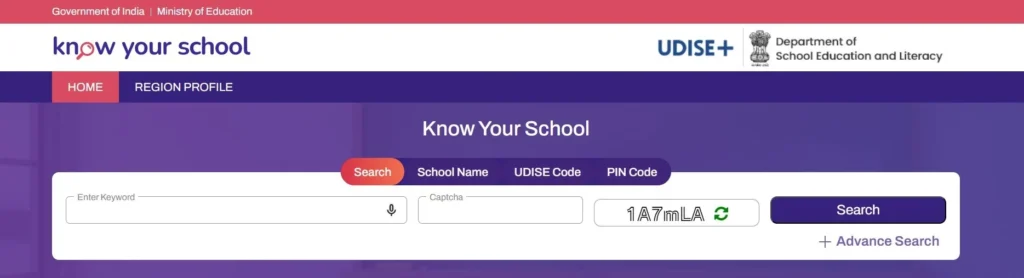
- Download Report Card: Once you find the school, you can view its “School Report Card.” This includes verified data on:
- Affiliation Board (CBSE, ICSE, State Board).
- Total Enrollment and Pupil-Teacher Ratio (PTR).
- Availability of Electricity, Library, and Functional Toilets.
UDISE Code Finder: Locate Your 11-Digit School ID
The UDISE Code is the unique identity of a school in India. If you do not know a school’s code:
- Navigate to the “Locate School” tab on the main UDISE+ site.
- Select the State, District, and Block.
- The system will generate a list of all registered schools in that block along with their 11-digit codes. This is essential for students needing their code for Scholarship (NSP) applications.
UDISE Plus Frequently Asked Questions
What is my UDISE Plus username?
For almost all school-level modules, your Username is your 11-digit UDISE Code. If you are a Block or District level officer, your username is the unique ID assigned by the State MIS.
How do I reset my UDISE password if the OTP isn’t coming?
If the “Forgot Password” utility fails, the Block MIS Coordinator is your only official recovery point. They must verify your identity and can manually trigger a password reset or update your registered mobile number in the School Directory Management module.
Is UDISE Plus linked to DigiLocker?
Yes. In 2025-26, student data is synced with DigiLocker via the APAAR ID (Automated Permanent Academic Account Registry). This ensures that marksheets and TCs (Transfer Certificates) are digitally accessible to students.
Can I fill out the UDISE Plus Student Module in Hindi?
UDISE Plus in Hindi (हिंदी): जी हाँ, पोर्टल के ऊपरी दाहिने कोने में ‘Language’ ड्रॉपडाउन से आप ‘Hindi’ चुन सकते हैं। हालांकि, डेटा प्रविष्टि (Data Entry) अक्सर अंग्रेजी में ही करनी होती है, लेकिन निर्देश और फॉर्म के लेबल हिंदी में देखे जा सकते हैं।
How do I handle a student with “No Aadhaar”?
While Aadhaar is the preferred validator, you can proceed with the PEN (Permanent Education Number) logic. However, to generate the APAAR ID and finalize the “General Profile,” a valid Aadhaar or EID (Enrollment ID) is required for de-duplication.
Final Words for Educators
Accuracy in the UDISE Plus 2025-26 cycle ensures that your school receives its fair share of Samagra Shiksha grants and PM-POSHAN benefits. Always certify your data before the national deadline to avoid “Zero-Data” status on the public KYS portal.
Expert Note: This portal (udiseplusstudentmodule.com) is an informational guide. For all official data submissions, please use only the authorized udiseplus.gov.in domain.